


Understanding the following storage space quantities is important for managing the file space of a database.
| Database quantity | Definition | Comments |
|---|---|---|
| Data space used | The space used to store database data. | Generally, space used increases on inserts and decreases on deletes. In some cases, the space used doesn’t change on inserts or deletes, depending on the amount and pattern of data involved in the operation and any fragmentation. For example, deleting one row from every data page doesn’t necessarily decrease the space used. |
| Data space allocated | The formatted file space made available for storing database data. | The amount of space allocated grows automatically but never decreases after deletes. This behavior ensures that future inserts are faster because space doesn’t need to be reformatted. |
| Data space allocated but unused | The difference between the amount allocated and data space used. | This quantity represents the maximum free space that shrinking database data files can reclaim. |
| Data max size | The maximum amount of space for storing database data. | The amount of data space allocated can’t grow |
The following diagram illustrates the relationships between the different types of storage space for a database.

Query a single database for file space information
Use the following query to return the amount of database file space allocated and the amount of unused space allocated. Units of the query result are in MB:
SELECT file_id, type_desc, CAST(FILEPROPERTY(name, ‘SpaceUsed’) AS decimal(19,4)) * 8 / 1024. AS space_used_mb, CAST(size/128.0 – CAST(FILEPROPERTY(name, ‘SpaceUsed’) AS int)/128.0 AS decimal(19,4)) AS space_unused_mb, CAST(size AS decimal(19,4)) * 8 / 1024. AS space_allocated_mb, CAST(max_size AS decimal(19,4)) * 8 / 1024. AS max_size_mb FROM sys.database_files;

Monitor log space use
Monitor log space use by using sys.dm_db_log_space_usage. This DMV returns information about the amount of log space currently used, and indicates when the transaction log needs truncation.
For information about the current log file size, its maximum size, and the autogrowth option for the file, you can also use the size, max_size, and growth columns for that log file in sys.database_files.
Examples
A. Determine the amount of free log space in tempdb
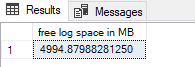
The following query returns the total free log space in megabytes (MB) available in tempdb.
USE tempdb;
GO
SELECT (total_log_size_in_bytes – used_log_space_in_bytes) * 1.0 / 1024 / 1024 AS [free log space in MB] FROM sys.dm_db_log_space_usage;
Shrink a log file
Shrink the log file to reduce its physical size by returning free space to the operating system. A shrink only makes a difference when a transaction log file contains unused space.
Okay, here is a solution to reduce the physical size of the transaction file, but without changing the recovery mode to simple.
Within your database, locate the file_id of the log file using the following query.
SELECT * FROM sys.database_files;
In my instance, the log file is file_id 2. Now we want to locate the virtual logs in use, and do this with the following command.
DBCC LOGINFO;
Here you can see if any virtual logs are in use by seeing if the status is 2 (in use), or 0 (free). When shrinking files, empty virtual logs are physically removed starting at the end of the file until it hits the first used status. This is why shrinking a transaction log file sometimes shrinks it part way but does not remove all free virtual logs.
If you notice a status 2’s that occur after 0’s, this is blocking the shrink from fully shrinking the file. To get around this do another transaction log backup, and immediately run these commands, supplying the file_id found above, and the size you would like your log file to be reduced to.
-- DBCC SHRINKFILE (file_id, LogSize_MB)
DBCC SHRINKFILE (2, 100);
DBCC LOGINFO;


This will then show the virtual log file allocation, and hopefully you'll notice that it's been reduced somewhat. Because virtual log files are not always allocated in order, you may have to backup the transaction log a couple of times and run this last query again; but I can normally shrink it down within a backup or two.
Testcase:
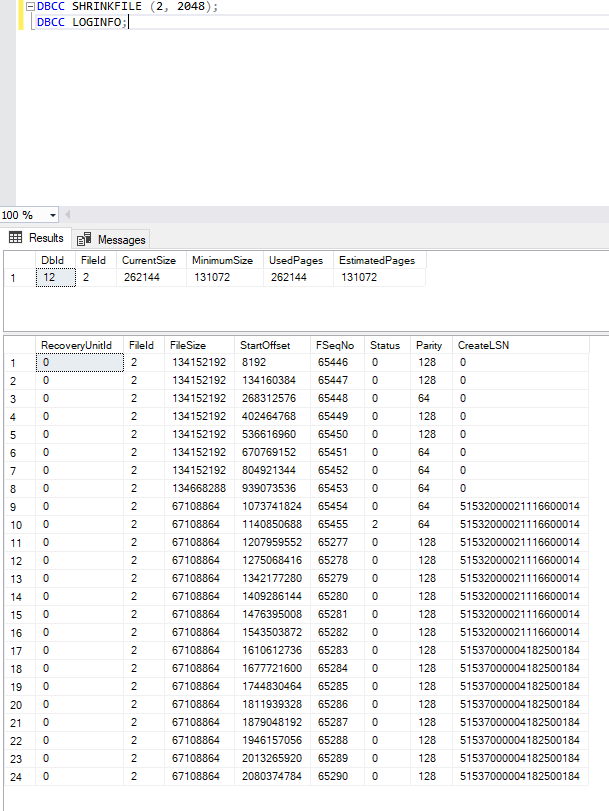
DBCC SHRINKFILE (2, 2048);
DBCC LOGINFO;

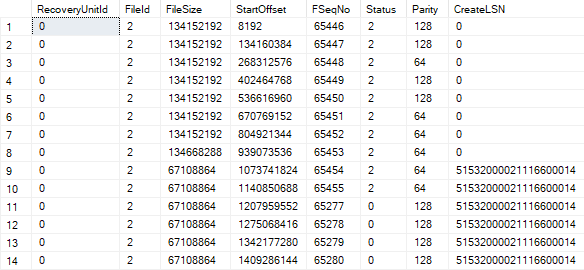
And Status 2 at the end to prevent shrinking
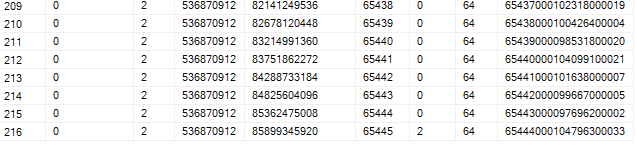
Log backup again:
BACKUP LOG EpicorERP
TO DISK = ‘S:\SQL\Backups\EpicorERP_LogBackup_020926A.trn’
WITH NOINIT, COMPRESSION;
GO
- Run Shrink again and the Log file reduced from 83 GB to approx 2 GB

Leave a Reply
You must be logged in to post a comment.