



To remove the SQL Server Reporting Services (SSRS) databases (ReportServer and ReportServerTempDB) using SQL Server Management Studio (SSMS), you must first ensure the associated Reporting Services is stopped, and then you can drop the databases like any other user database.
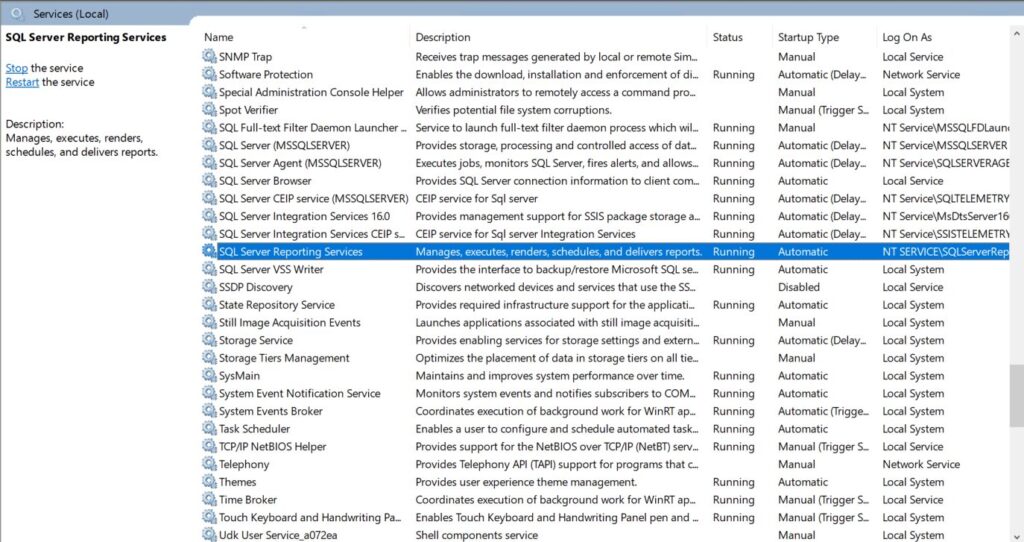
Stop the SSRS Service: Before attempting to delete the databases, you should stop the “SQL Server Reporting Services” service to prevent any active connections from blocking the deletion. You can do this via Windows Services (search for “Services” in the Start menu, find the service, right-click, and select Stop).
Method 1: Using Object Explorer (SSMS GUI)
- Connect to your SQL Server instance in SQL Server Management Studio (SSMS).
- In the Object Explorer pane, expand the Databases folder.
- Right-click on the
ReportServerdatabase and select Delete. - In the Delete Object dialog box, confirm the correct database is selected and check the box to “Close existing connections” (if available/necessary).
- Click OK.
- Repeat the process for the
ReportServerTempDBdatabase. - Refresh the Databases folder to ensure the databases are no longer listed.
Method 2: Using Transact-SQL (T-SQL)
- Connect to your SQL Server instance in SSMS.
- Click “New Query” on the standard toolbar.
- Ensure you are in the
masterdatabase context (use the dropdown or typeUSE master;in the query window). - Copy and paste the following T-SQL commands into the query window: sql
USE master; GO DROP DATABASE ReportServer; GO DROP DATABASE ReportServerTempDB; GO - Click Execute.
The databases will be permanently deleted. If you need to uninstall the SSRS feature or service from the server entirely (not just the databases), you must use the Windows Control Panel’s “Programs and Features” menu and the SQL Server setup wizard.

Leave a Reply
You must be logged in to post a comment.