
Senox Information Management System (IMS) is a framework of processes and applications for automating tasks, collecting, organizing, storing, analyzing, and distributing data and information to improve the company’s productivity, efficiency, and decision-making.
Table of Contents
- Inventory
- Branch Order Fulfillment Dashboards
- Mfg Jobs Management Dashboards
- Slitter Integration
- Finance – Daily Report Management
- Server Admin
Inventory
Senox Inventory Management System (SIMS) is a physical inventory system for periodic process of counting or verifying the actual physical stock of goods in a warehouse or branch location to reconcile it with inventory records. SIMS provides more efficient electronic methods using scanners and barcode technology.
Branch Inventory
Handhelds
- Inventory icon is set to http://sims.senox.corp:8080/
- Login: <SiteID>02 (e.g. TXAU02)
This user login is non-admin for counting/scanning. The user interface is streamlined for viewing on the handheld scanner.
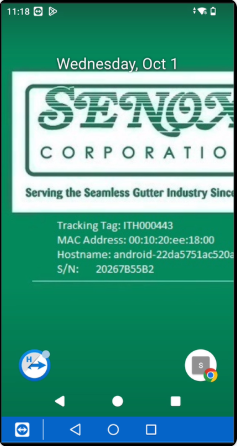
- click the SIMS Chrome browser icon
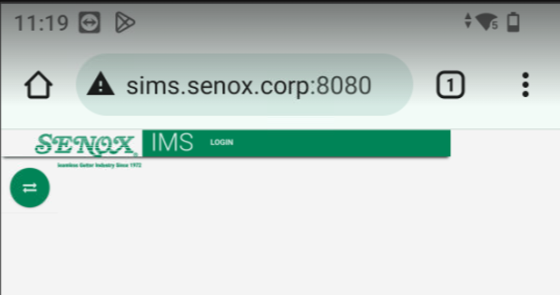
- click ‘LOGIN’
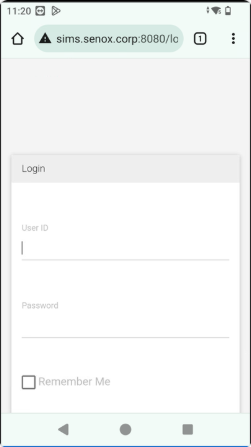
- Enter login credentials
Desktop
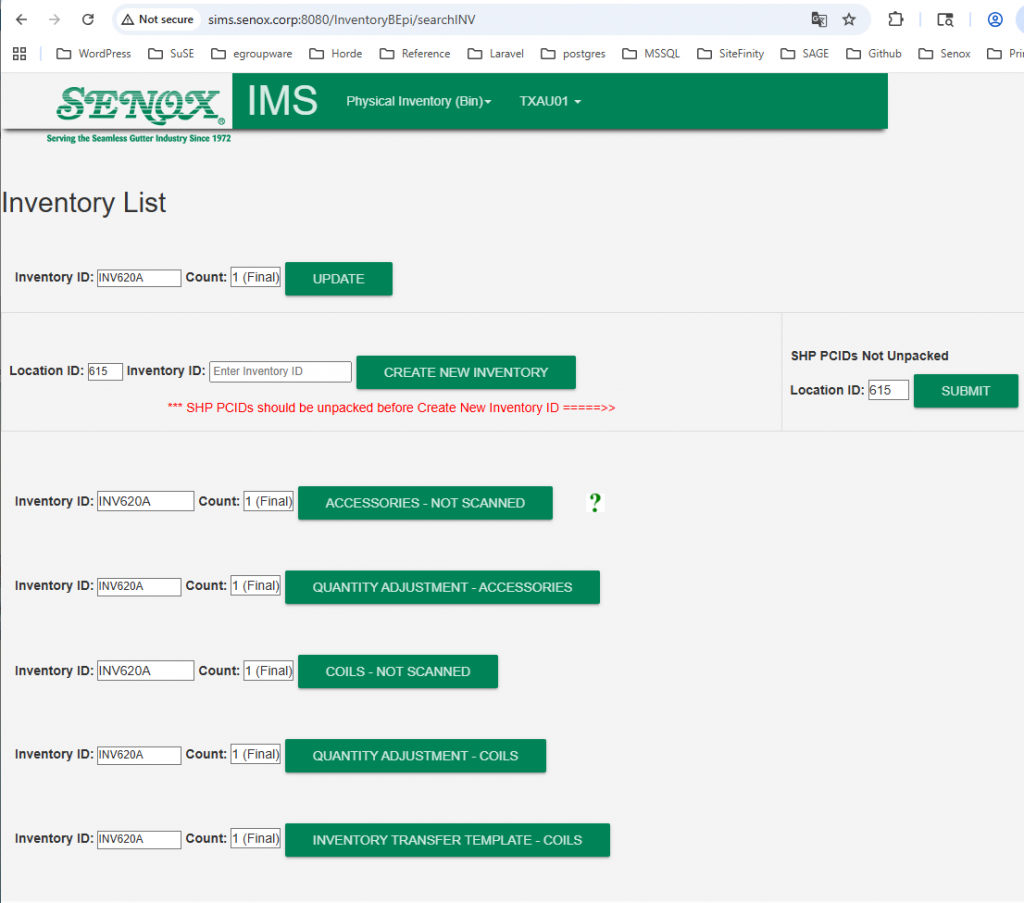
- Inventory Link: http://sims.senox.corp:8080/
- Login: <SiteID>01 (e.g. TXAU01)
This user login is for the inventory Admin having the Epicor access privilege to perform Quantity Adjustment. The Admin can access SIMS inventory reports. The user interface includes more columns/content which is best viewing on the desktop browser.
Plant Warehouse Inventory TXSX / Rainstamp TXME
TXSX Logins
- SHIP01 senox123
- SHIP02 senox123
- SHIP03 senox123
- SHIP04 senox123
- SHIP05 senox123
- SHIP06 senox123
- SHIP11 ship11
- SHIP12 ship12
- SHIP13 ship13
- SHIP14 ship14
- SHIP15 ship15
- PINV01 pinv01
- PINV02 senox123
- PINV03 senox123
- PINV04 senox123
- PINV05 senox123
- PINV06 senox123
- PINV07 senox123
- PINV08 senox123
- PINV09 senox123
- PINV10 senox123
- PINV11 senox123
- PINV12 senox123
- PINV13 senox123
- PINV14 senox123
- PINV15 senox123
- PINV16 senox123
- PINV17 senox123
- PINV18 senox123
- PINV19 senox123
- TXSX01 senox123 (Admin)
TXME Logins
- SHIPME02
- SHIPME03
- SHIPME04
- SHIPME05
- SHIPME06
- SHIPME07
- SHIPME08
- SHIPME09
- SHIPME10
- SHIPME11
- SHIPME12
- SHIPME13
- SHIPME14
- SHIPME15
- SHIPME16
- SHIPME17
- SHIPME18
- SHIPME19
- SHIPME20
- SHIPME21
- SHIPME22
- SHIPME23
- SHIPME24
- SHIPME25
- SHIPME26
- SHIPME27
- SHIPME28
- TXME02
- TXME03
- TXME04
- TXME09
- TXME10
- TXME11
- TXME12
- TXME13
- pw: login ID in lowercase.
- Admin login: TXME01 senox123
Inventory User Guide
The SIMS user guide is available from the Physical Inventory dropdown menu
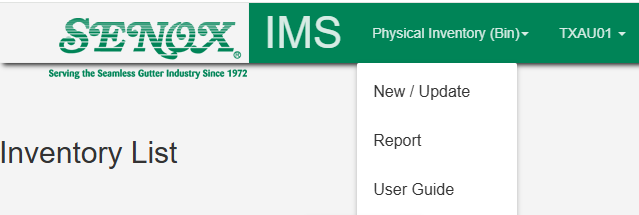
- click ‘User Guide’ and the PDF document file opens in a browser tab for viewing or download.
SIMS – RTL
Handheld Setup with SIMS link: http://172.30.1.116:8080/InventoryB/searchINV
Handheld Logins:
PINV01 – pinv01
PINV02 – senox123
PINV11 – senox123
PINV12 – senox123
PINV13 – senox123
PINV14 – senox123
PINV15 – senox123
PINV16 – senox123
PINV17 – senox123
PINV18 – senox123
RTL01 (Admin) – senox123
New Inventory
Create New Inventory

Inventory Count / Scan

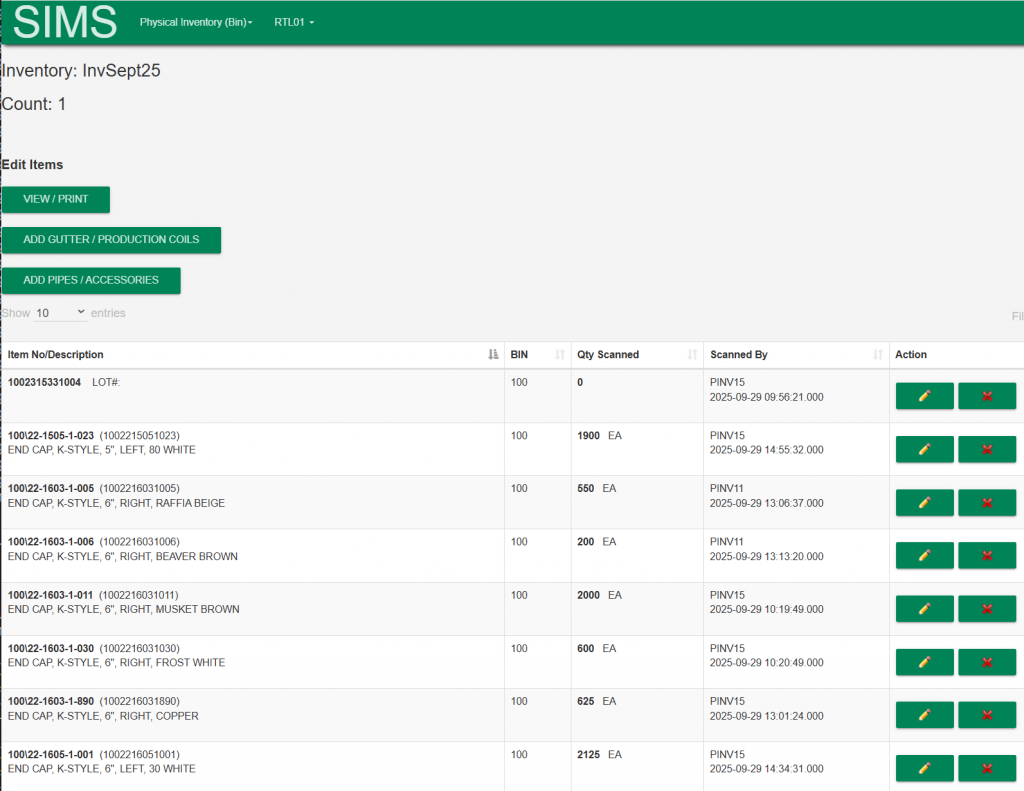
Inventory Report
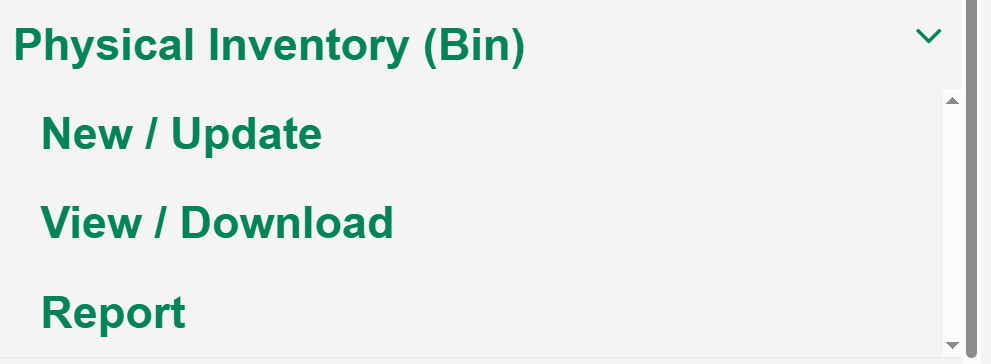
All Scanned Coils
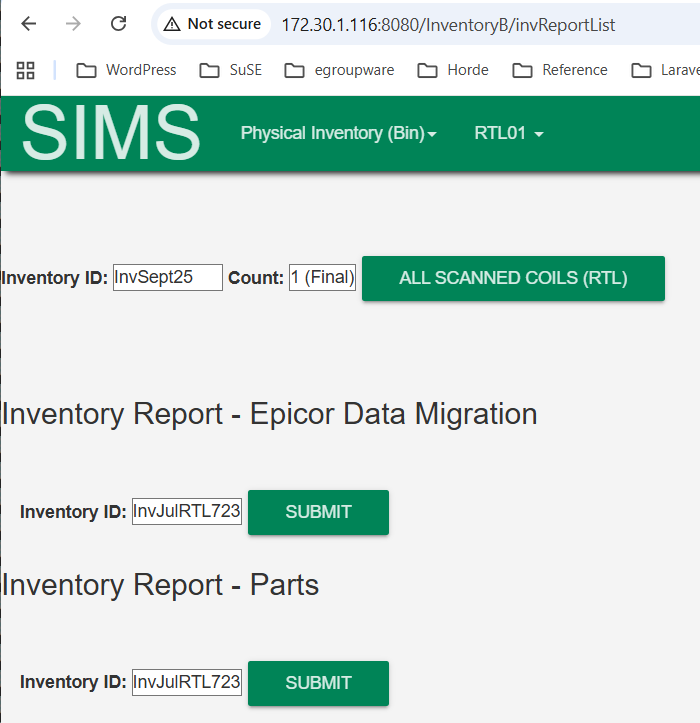
Variance Report

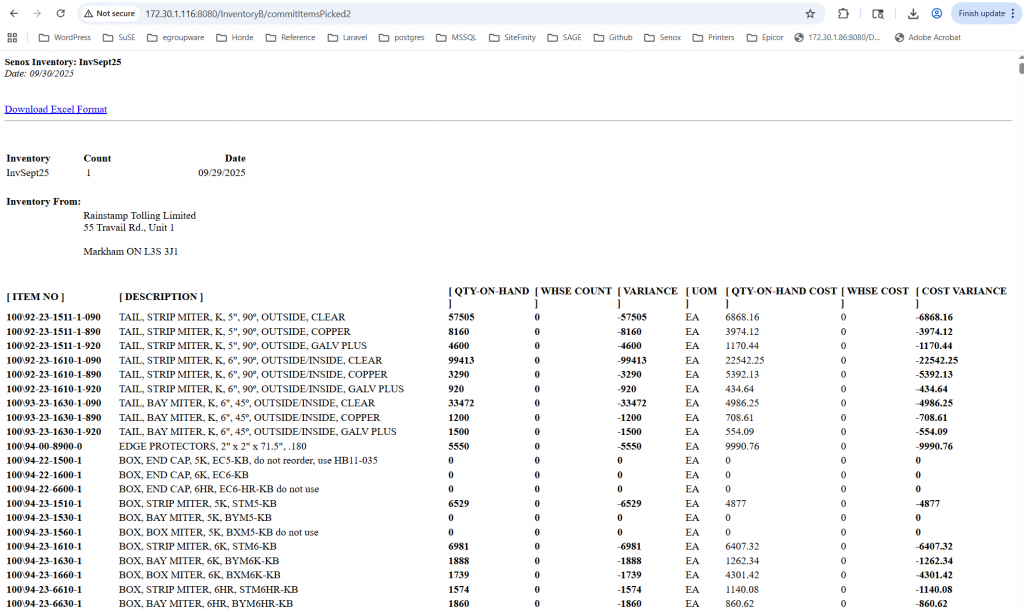
- ‘View/Download Variance Report – All Departments’ – generate the variance report for all parts included in the inventory.
- ‘Download Excel Format’ – the report can be downloaded as an Excel file.
Inventory Cycle Count – TXSX / Rainstamp TXME
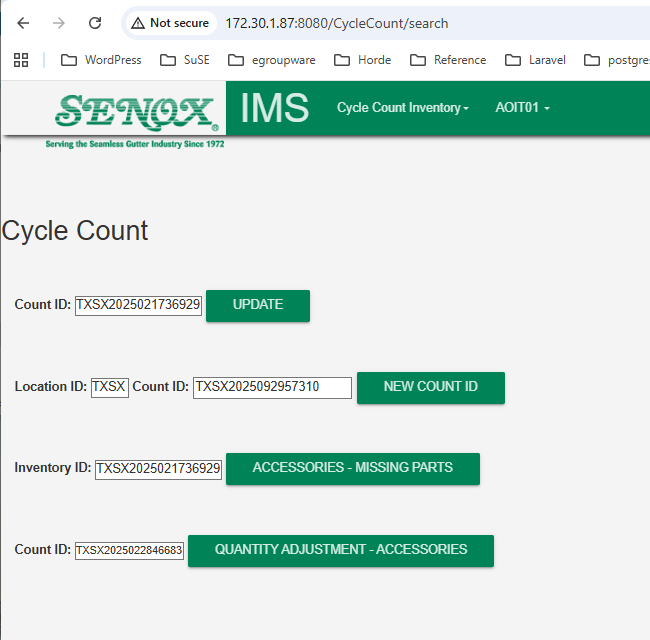
An inventory cycle count is an ongoing, systematic process of counting a small subset of your inventory items to ensure accuracy, rather than conducting a full annual / semi-annual physical inventory count.
Login
Login to
http://172.30.1.87:8080/CycleCount/search
Branch Order Fulfillment Dashboards
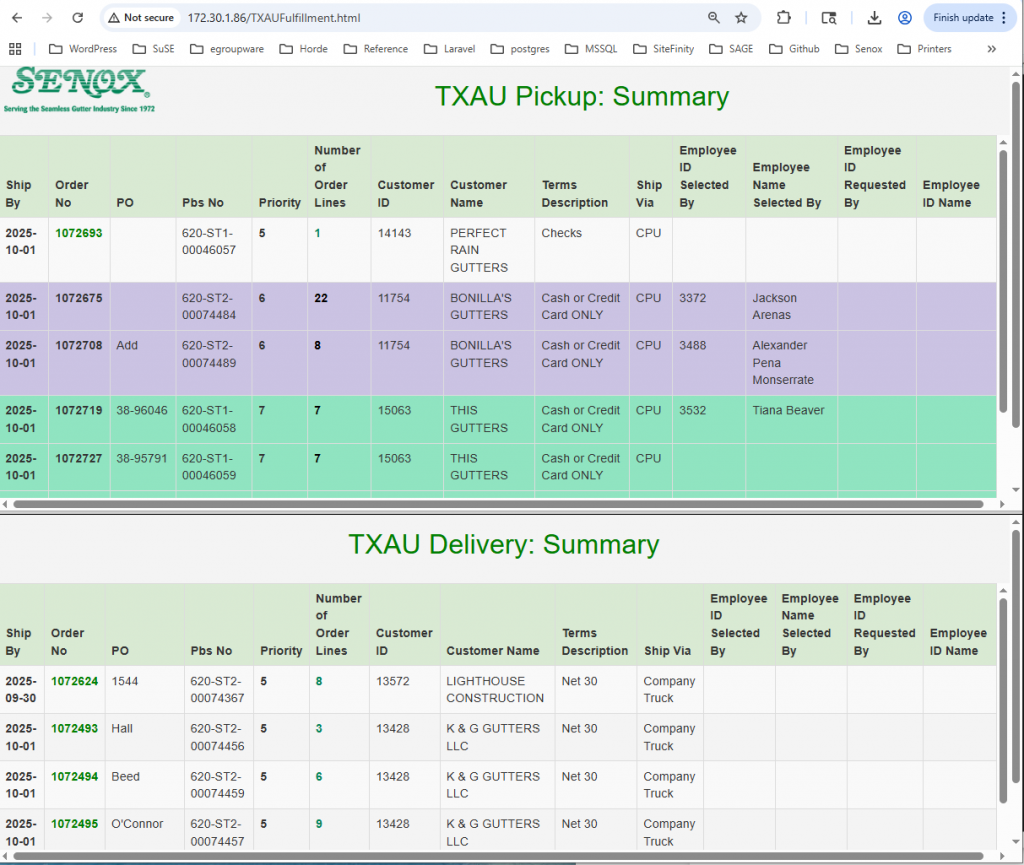
The Order Fulfillment dashboard displays the sales orders on the TV at the branch. The order shows up when it is released in Epicor ready for picking. The dashboards auto refresh every 3 mins to pull in the new orders released in Epicor.
The dashboards run on server simsd.senox.corp
Branch TV Dashboard Links
- FLDB
- FLFM
- FLJA
- FLOR
- FLPE
- FLTA
- GAAC
- GAAF
- GAAK
- GAAS
- KYLO
- NCCH
- OKOC
- TNCH
- TNNV
- TXAU
- TXCC
- TXDL
- TXFW
- TXGA
- TXHN
- TXHU
- TXLU
- TXLV
- TXME
- TXSA
- TXSX
Mfg Jobs Management Dashboards
- TXSX Roll Forming
- TXSX Stamping
- TXSX Offset
- TXME Roll Forming
- TXME Offset
- TXME Gutter Guard
- TXME Slitter – RB1
- TXME Slitter – RB2
- TXME Slitter – LN2
Slitter Integration
- coming soon…
Finance – Daily Report Management
- https://www.infoqi.com/finance-daily-report/ – User Guide / Documentation
Server Admin
The SIMS Inventory application and the Slitter Integration are running on the production server sims.senox.corp
The Branch Fulfillment dashboards and the Daily Report are running on the production server simsd.senox.corp
The new Inventory – Cycle Count application is running on server simsb.senox.corp. SIMSB server should have the latest changes/update from the main production server SIMS.
Starting Application Instances
Inventory Application & Slitter Integration
- SSH login as hubuser –
> ssh hubuser@sims.senox.corp - run sims_start
> ~/bin/sims_start
Branch Fulfillment Dashboards
- SSH login as hubuser –
> ssh hubuser@simsd.senox.corp - run sims_start
> ~/bin/sims_start
Inventory – Cycle Count
- SSH login as hubuser –
> ssh hubuser@simsb.senox.corp - run sims_start
> ~/bin/sims_start
